How it works

From Shopify product to custom order in four clear steps.

The workflow is intentionally simple: start with an existing product, control what can be customized, let the customer personalize, and generate production-ready output after purchase.

  1. 01

    Connect product

    Choose the Shopify product that should become customizable and keep the workflow tied to the existing store catalog.

  2. 02

    Configure customization logic

    Set print areas, views, options, upsells, AI styles, and the rules that shape the customer experience.

  3. 03

    Customer customizes and orders

    The shopper moves through product, design, sizes, and order in one guided storefront flow.

  4. 04

    Generate print-ready production files

    After checkout, the system prepares outputs that support production download and operational handling.

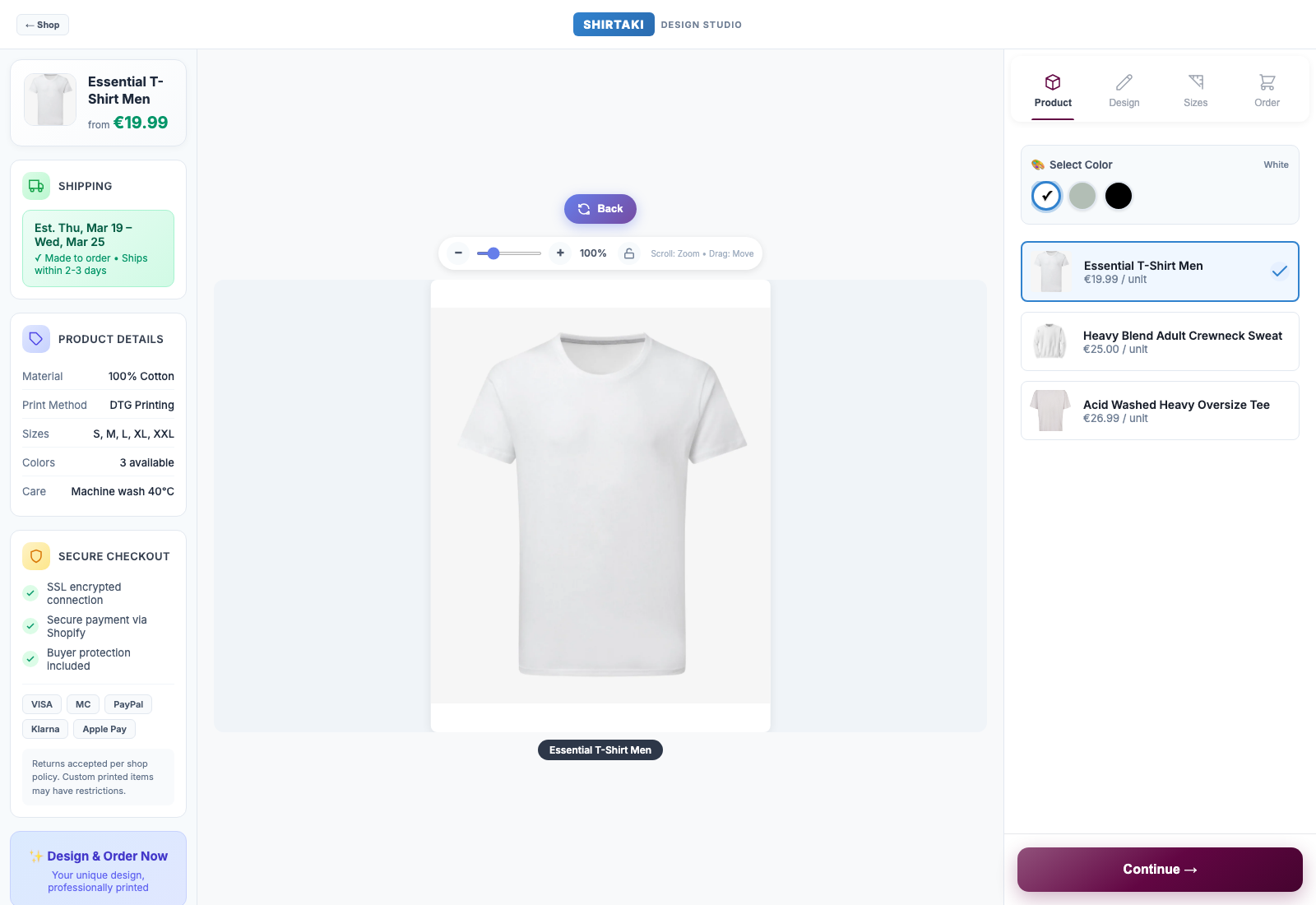
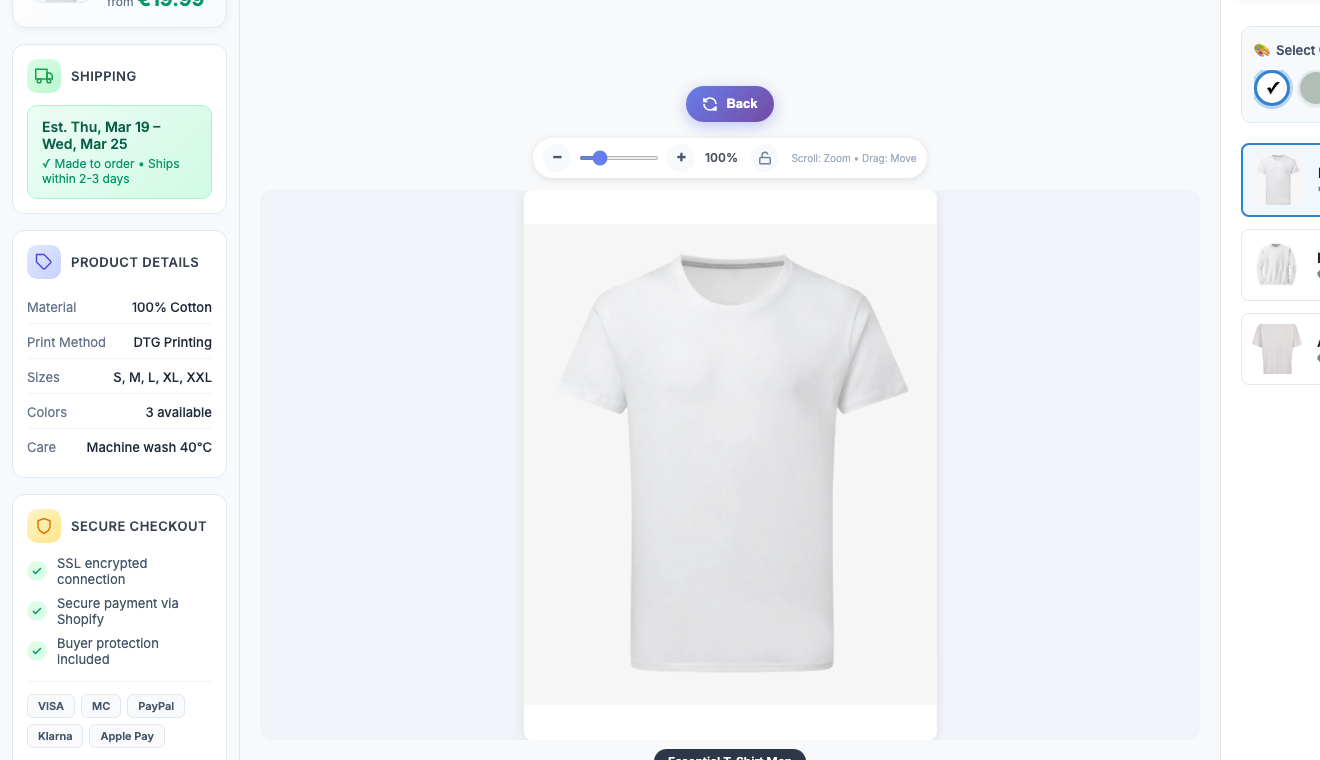
Product setup and live product selection
Step 1 Desktop view

Product setup and live product selection

This is the entry view on the storefront. It keeps product choice, color selection, pricing context, and the next step visible without overwhelming the shopper.

Live product switchColor optionsStock-linked setup
  • The merchant connects an existing Shopify product instead of rebuilding the catalog in a separate system
  • The storefront shows product choices, color selection, and active item details in a clear product-first layout
  • Live stock, product data, and product switching stay tied to the Shopify setup behind the designer
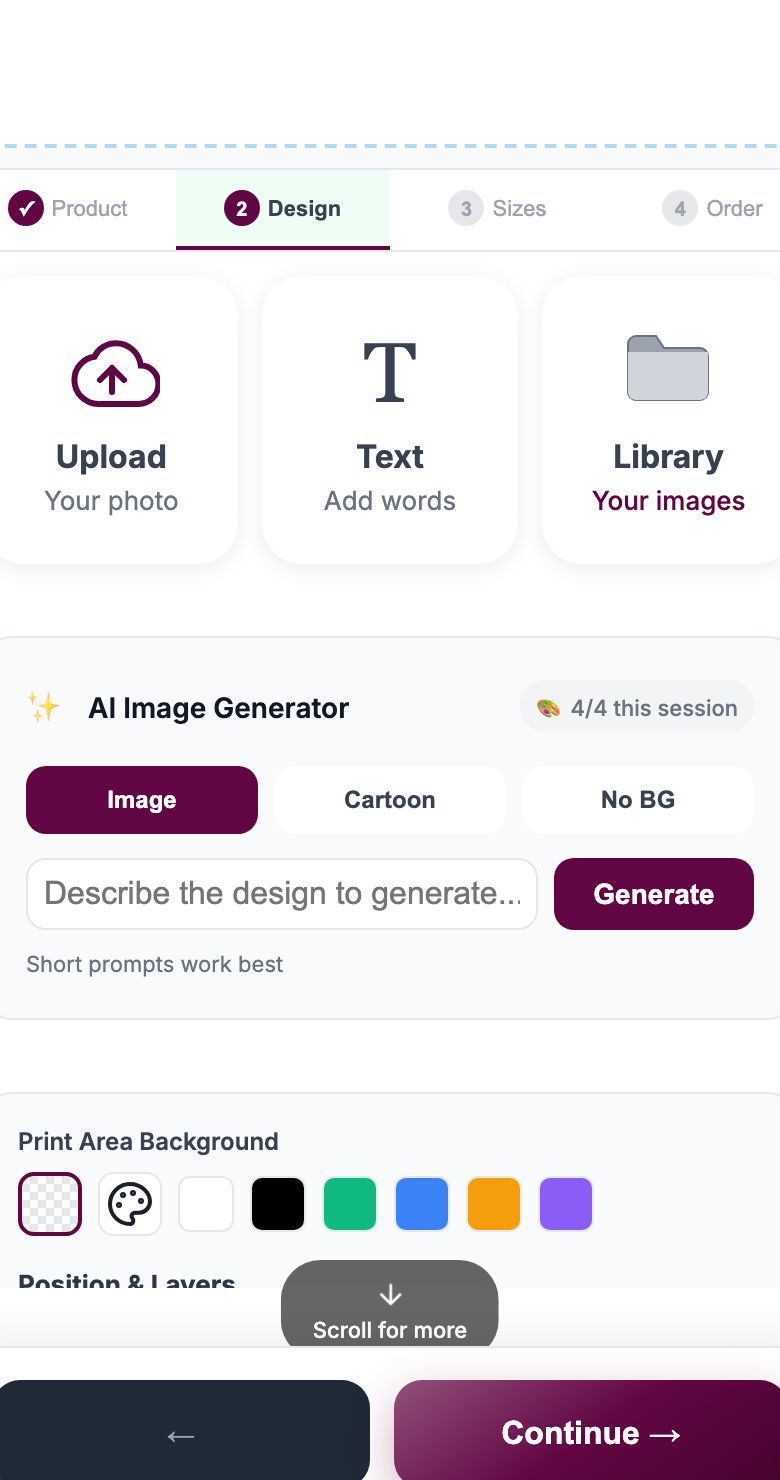
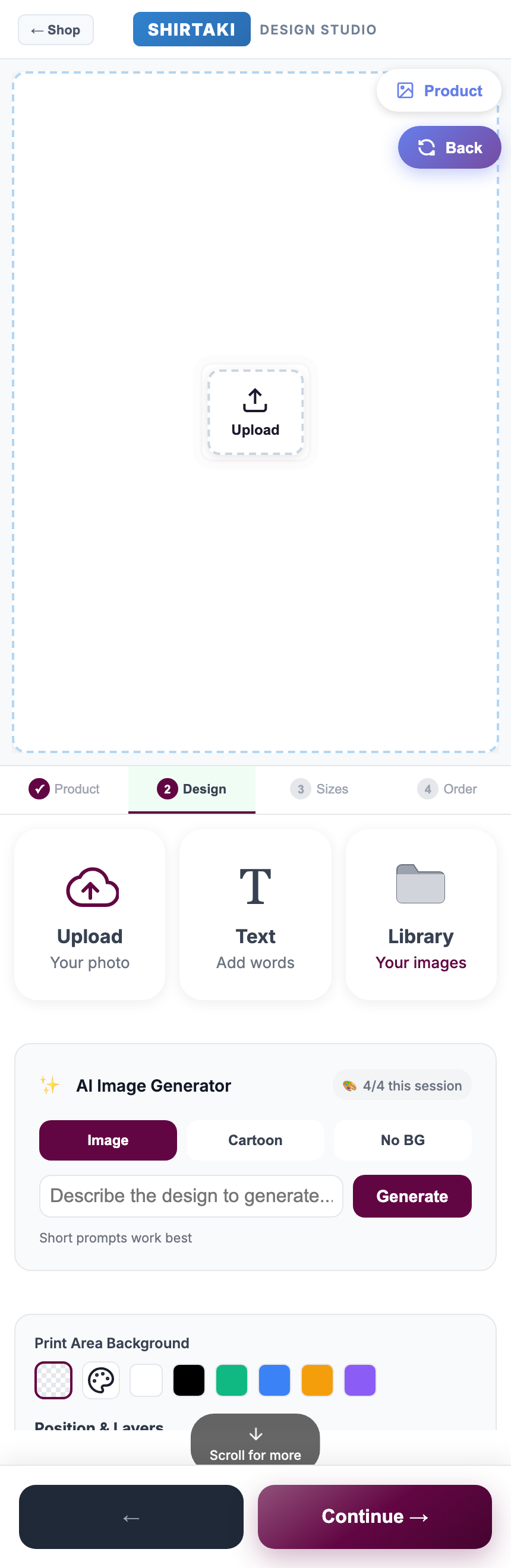
Upload, text, AI image styles, crop logic, and design controls
Step 2 Design step

Upload, text, AI image styles, crop logic, and design controls

This screen is where personalization actually happens. Upload, text, AI actions, and positioning tools are grouped into one focused workspace instead of being spread across multiple panels.

UploadTextAI stylesNo BGLayers
  • Customers can upload an image, work with their own library items, or add custom text from the design step
  • AI image generation, style actions, background removal, crop handling, zoom behavior, and layer positioning stay inside one guided screen
  • This keeps design choices visible and simple on mobile instead of scattering tools across a cluttered editor
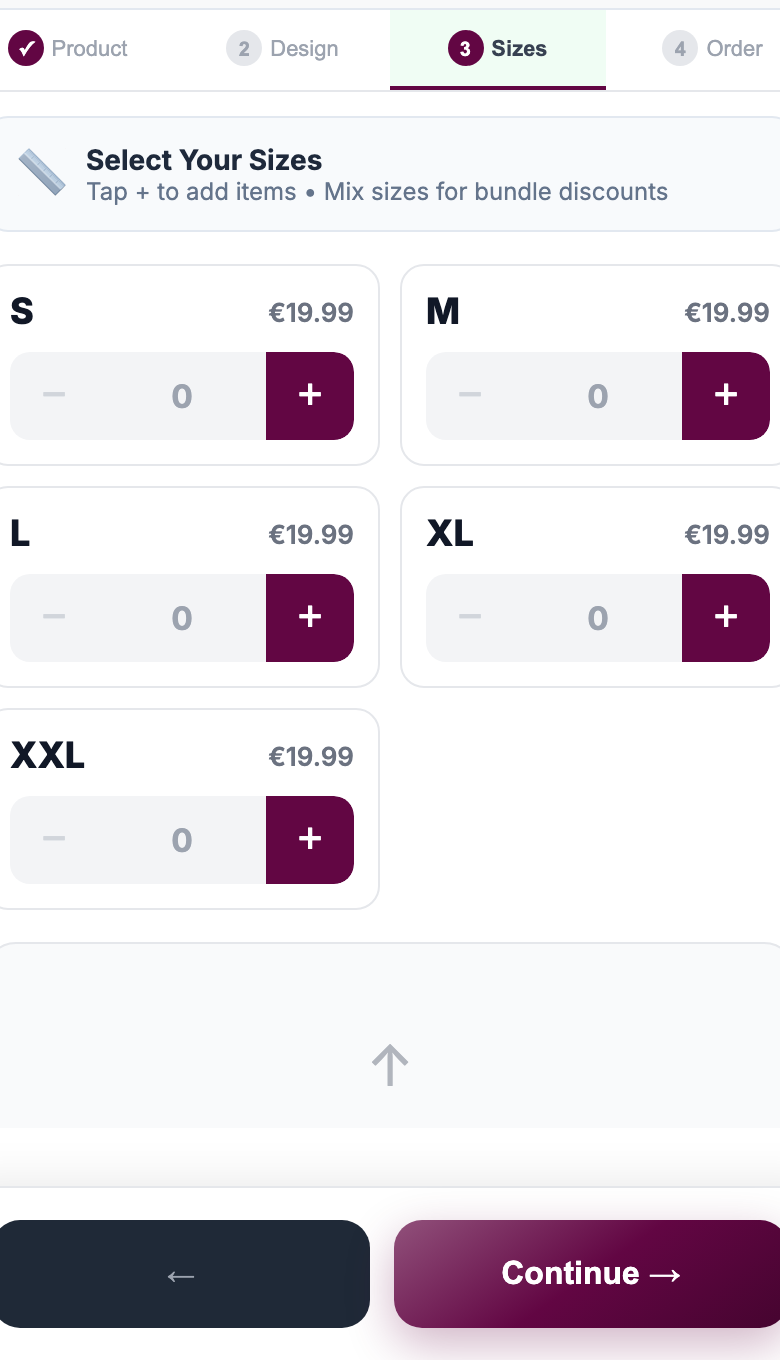
Mobile-friendly size, quantity, discount, and upsell flow
Step 3 Mobile flow

Mobile-friendly size, quantity, discount, and upsell flow

The size step is designed to help conversion, not just collect options. Quantity selection, discount thresholds, and the continue action stay obvious on a small screen.

SizesBundle discountsTouch-first controlsUpsell-ready flow
  • The same step logic works on mobile with touch-friendly size controls and a clearer continue path
  • Size and quantity choices can support bundle discounts directly in the buying flow, with thresholds shown to the shopper
  • Alternate products, related options, and upsell logic can be introduced as part of the order journey instead of as disconnected popups
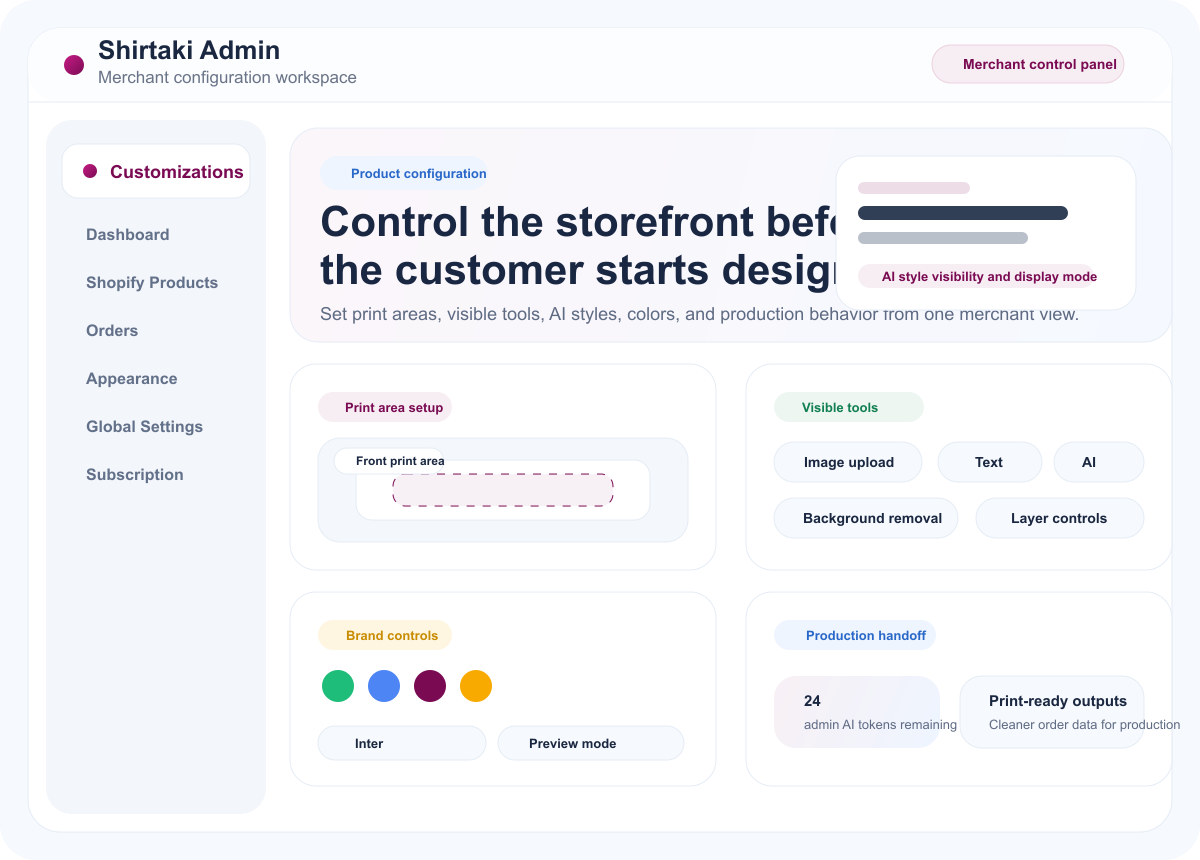
Merchant control and print-ready production output
Step 4 Admin + output

Merchant control and print-ready production output

On the merchant side, the designer behavior stays configurable. Teams decide which tools are visible, which AI styles are enabled, and how the customer experience should behave before production starts.

Tool visibilityAI style controlsBrand colorsProduction-ready output
  • Merchants control visible tools, available AI styles, colors, brand behavior, and design logic from admin
  • After checkout, the order can move into print-ready output instead of manual recreation work
  • This keeps the shopper flow simple while giving production teams cleaner files and order data

Why this matters

Simple for the shopper, structured for the merchant team

The best customization flow does two jobs at once: it helps the customer move forward confidently, and it keeps the merchant side ready for pricing, upsells, and production handoff.

Merchant value

Launch custom products without rebuilding the product catalog

Shirtaki starts from the existing Shopify product, so merchants can move faster, keep product data aligned, and introduce personalization without replacing the storefront stack.

Operational value

Cleaner order input means less manual correction later

The mobile and desktop flows are not just visual variants. They are where the merchant’s setup choices become usable buying decisions for the customer.

  • Product and color selection stay visible before the customer starts designing
  • Upload, text, AI styles, and image cleanup stay inside one guided design step
  • Size quantities and discount thresholds are shown where they can improve conversion
  • Upsell paths can be introduced during the order journey instead of after checkout
  • The same structured input supports cleaner production handoff and fewer support messages

What the customer can do

Key options stay understandable on every screen size

Design tools

Upload artwork, add text, use AI styles, remove backgrounds, and position layers inside the print area.

Conversion tools

Mix sizes, trigger quantity discounts, and present alternate product or upsell logic in the same flow.

Merchant controls

Decide which tools appear, which styles are enabled, and how the storefront behavior should be constrained.

Production outcome

Keep the order tied to structured customization data instead of rebuilding artwork details manually later.

Live storefront designer

Desktop storefront flow

The full product-first designer view keeps product info, color context, and the next action clear.

Design tools on mobile

Mobile design step

Upload, text, AI style actions, and layer controls stay compact and focused on mobile.

Admin

Merchant admin control

The storefront flow works because the merchant side stays configurable. This is where product rules, tool visibility, brand behavior, and production readiness are controlled before launch.

Merchant admin panel

Admin panel overview

The merchant controls what the shopper sees and what production receives, from one admin workspace.

Merchant advantages

Fewer surprises after launch

  • Control which tools customers see in the designer
  • Choose which AI styles are visible and how they are presented
  • Set print areas, brand colors, and storefront behavior before launch
  • Keep the production handoff aligned with the storefront setup

Next step

If the workflow matches your catalog, the next step is rollout planning.

Use the contact page to discuss merchant setup, product categories, or production-fit questions.